
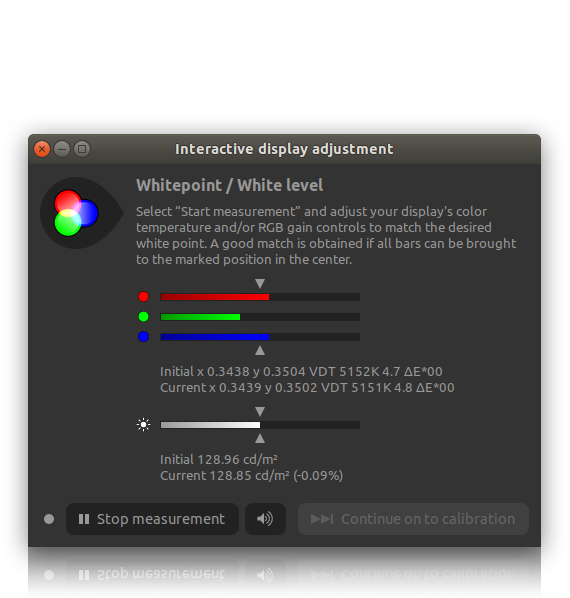
Unlocking Perfect Hues: Your Guide to Monitor Calibration Tools for Color Accuracy
In the vibrant world of digital creation, from professional photography and meticulous graphic design to intricate video production, color accuracy is not just a preference—it's a fundamental necessity. Imagine spending hours perfecting an image or video, only to find that the colors appear completely different on another screen or, worse, in print. This common frustration stems from uncalibrated displays, where your monitor's interpretation of color deviates significantly from industry standards. This comprehensive guide delves deep into the indispensable realm of monitor calibration tools for color accuracy, revealing how these sophisticated devices ensure your digital work translates faithfully across all platforms and mediums. We'll explore the essential hardware and software, the underlying science, and provide actionable insights to achieve unparalleled visual fidelity in your creative workflow.
Why Monitor Calibration is Non-Negotiable for Creative Professionals
For anyone serious about their digital output, an uncalibrated monitor is akin to a musician playing an untuned instrument. The results are unpredictable, inconsistent, and ultimately, unprofessional. Without proper display profiling, your screen might be showing you oversaturated reds, muted blues, or an entirely incorrect white point, leading to critical errors in your work.
- Inconsistent Output: What looks perfect on your screen might appear wildly off on a client's monitor, a printed proof, or a final broadcast. This discrepancy can lead to costly reprints, revision cycles, and damaged professional reputation.
- Wasted Resources: Incorrect color representation often results in wasted time and materials, especially in print production. Calibrating your screen saves you from the frustration and expense of multiple test prints.
- Client Satisfaction: Delivering consistent, accurate color across all deliverables builds trust and ensures client expectations are met, if not exceeded. Adhering to brand guidelines and maintaining visual consistency is paramount.
- Creative Integrity: Your artistic vision relies on accurate color. Calibration ensures that the colors you painstakingly select and manipulate are precisely what you and others perceive.
The Science Behind Color Accuracy: Understanding Delta E and ICC Profiles
To truly appreciate the power of monitor calibration tools, it's vital to grasp the core concepts that govern color accuracy. Two critical terms are Delta E (dE) and ICC profiles.
- Delta E (dE): This metric quantifies the difference between two colors. A dE value of 1.0 or less is generally considered imperceptible to the human eye, meaning the colors are virtually identical. Professional workflows often aim for an average dE below 2.0 or even lower for critical colors. Higher dE values indicate noticeable color shifts, highlighting the need for calibration.
- ICC Profiles: An ICC (International Color Consortium) profile is a data file that describes the color characteristics of a device (like your monitor, printer, or scanner). When you calibrate your monitor, the software creates a custom ICC profile unique to your specific display. This profile tells your operating system and color-managed applications (e.g., Photoshop, Premiere Pro) how to accurately display colors, ensuring that what you see on screen is as close as possible to the intended color. It defines your monitor's color space, white point, and gamma curve.
Essential Monitor Calibration Tools: Hardware vs. Software
While some operating systems offer basic software-based display adjustments, achieving true color accuracy requires dedicated hardware. It's crucial to understand the distinction:
- Hardware Calibration Devices: These are physical tools that measure the light emitted by your screen. They are the cornerstone of professional color management and offer unparalleled accuracy.
- Software-Only Solutions: These typically involve visual adjustments made by eye or basic sliders within your operating system (e.g., Windows Color Management, macOS Display Calibrator Assistant). While they can offer minor improvements, they cannot create an accurate ICC profile or truly measure your display's capabilities. They only adjust the video card's lookup tables (LUTs), not the monitor itself. Learn more about color management basics for a deeper dive.
Hardware Calibration Devices: Colorimeters and Spectrophotometers
These are the workhorses of professional display profiling, each with its strengths:
Colorimeters
Colorimeters are the most common and generally more affordable hardware calibration tools. They work by using three color filters (red, green, and blue) in front of light sensors to measure the light output from your monitor, mimicking how the human eye perceives color. They are excellent for LCD and LED displays.
- How they work: The device is placed directly on your screen. Calibration software displays a series of color patches, and the colorimeter measures the resulting light, sending data back to the software to build an accurate ICC profile.
- Pros: More affordable, highly effective for most modern monitors (LCD/LED), and relatively fast. Ideal for photographers, graphic designers, and video editors working primarily with screen-based content.
- Cons: Can be less accurate with very wide-gamut displays or for profiling projectors and printers. Their filters can also degrade over time, slightly affecting long-term accuracy.
- Popular Models: The Datacolor SpyderX series (e.g., SpyderX Elite) and X-Rite (now Calibrite) i1Display Pro (now Calibrite ColorChecker Display Pro) are industry standards, known for their reliability and user-friendly software. These tools provide precise luminance and white point adjustments.
Spectrophotometers
Spectrophotometers are the gold standard for ultimate color measurement accuracy. Unlike colorimeters, they measure the full spectrum of light emitted by a display (or reflected from a surface like paper). This makes them incredibly versatile and future-proof.
- How they work: They use a diffraction grating to split light into its component wavelengths, providing a detailed spectral fingerprint of the color. This data is then used to create highly accurate ICC profiles.
- Pros: Superior accuracy, especially for wide-gamut displays, projectors, and even for profiling printers and other surfaces. They are not affected by display technology changes or filter aging. Essential for print profiling and other material measurements.
- Cons: Significantly more expensive than colorimeters and often slower in measurement.
- Popular Models: The X-Rite (now Calibrite) i1Pro series (e.g., Calibrite ColorChecker Studio) is a top choice for professionals requiring the highest level of spectral data accuracy across all color-critical applications, including textile design and scientific research.
Software-Based Calibration (Limited Use)
While not a substitute for hardware, it's worth mentioning the limitations of software-only calibration options:
- Operating System Tools: Windows Color Management and macOS Display Calibrator Assistant allow you to visually adjust your monitor's brightness, contrast, and color balance. While they can help mitigate extreme color casts, they rely on your subjective perception and cannot accurately measure your screen's actual color output or create a truly precise ICC profile.
- Monitor OSD (On-Screen Display) Settings: Your monitor's built-in menu allows for basic adjustments. These should always be reset to factory defaults before a hardware calibration, as the hardware/software combination will optimize these settings more effectively.
Actionable Tip: Always prioritize hardware calibration for any work where color accuracy is important. Software-only methods are best reserved for minor visual tweaks on non-critical displays.
The Calibration Process: A Step-by-Step Guide
Calibrating your monitor with a hardware device is a straightforward process, typically guided by the calibrator's accompanying software. Here's a general overview:
- Pre-Calibration Preparation:
- Monitor Warm-up: Allow your monitor to warm up for at least 30-60 minutes. This stabilizes its color and brightness output.
- Ambient Lighting: Ensure your working environment has consistent, subdued lighting. Avoid direct sunlight or highly colored lights that could influence your perception. Turn off any external light sources that might interfere with the sensor.
- Clean Screen: Wipe down your screen to remove dust or smudges that could affect measurements.
- Reset Monitor Settings: If your monitor has an OSD (On-Screen Display) menu, reset its color settings to factory defaults. Disable any dynamic contrast, eco modes, or similar "enhancement" features.
- Install Calibration Software: Install the software that came with your hardware calibrator. Ensure it's the latest version.
- Connect the Device: Plug your colorimeter or spectrophotometer into a USB port on your computer.
- Choose Calibration Settings: The software will prompt you to select target settings. These are crucial for your specific workflow:
- White Point: This defines what "white" looks like.
- D65 (6500K): Standard for web content, video production, and general use, mimicking daylight.
- D50 (5000K): Standard for print matching, as it resembles the light source used in print viewing booths.
- Luminance (Brightness): Measured in candelas per square meter (cd/m²).
- 80-100 cd/m²: Common for print work.
- 100-120 cd/m²: Standard for web and video. Avoid setting it too high, as this can lead to eye strain and inaccurate perception of dark tones.
- Gamma: Controls the tone curve, affecting mid-tone brightness.
- 2.2: The industry standard for PC and Mac for most workflows (sRGB, Adobe RGB).
- Black Point: While often automatically determined, some software allows adjustment. Crucial for accurate shadow detail.
- White Point: This defines what "white" looks like.
- Run the Measurement: Place the device on the designated spot on your screen (usually guided by the software). The software will then display a series of color patches, and the calibrator will measure them. This process typically takes a few minutes.
- Save the ICC Profile: Once measurements are complete, the software generates a custom ICC profile for your monitor. Save this profile and set it as the default for your display. The software will often automatically load it upon startup.
- Validation (Optional but Recommended): Many calibration software packages allow you to validate your calibration by measuring a new set of patches and reporting the Delta E values, confirming the accuracy of your new profile.
Explore advanced calibration techniques for multi-monitor setups and specific color spaces.
Maintaining Color Accuracy: Beyond Initial Calibration
Calibration is not a one-time event. Monitors drift over time due to various factors, necessitating regular recalibration to maintain optimal color accuracy.
- Recalibration Frequency:
- For color-critical workflows (e.g., professional photography, high-end graphic design, video grading): Calibrate monthly, or even bi-weekly if your monitor is older or heavily used.
- For less critical but still important work: Every 1-2 months.
- For general use: Every 3-6 months.
- Environmental Factors: Changes in ambient lighting can affect how you perceive colors, even on a perfectly calibrated screen. Try to maintain a consistent working environment. Some advanced calibrators include ambient light sensors to advise on ideal conditions.
- Monitor Aging: All display technologies degrade over time. Backlights dim, and color filters can shift. Regular recalibration accounts for these changes, ensuring continued accuracy.
- Software Updates: Occasionally, operating system or graphics driver updates can interfere with existing ICC profiles. If you notice a sudden color shift after an update, recalibrate.
Call-to-Action: Don't compromise on your creative vision. Invest in a quality monitor calibrator today and experience the true colors of your work!
Choosing the Right Monitor Calibration Tool for Your Needs
Selecting the best monitor calibration tool depends on your budget, profession, and specific requirements:
- Entry-Level Professionals/Enthusiasts (Photography, Web Design):
- Recommendation: Datacolor SpyderX Pro/Elite or Calibrite ColorChecker Display/Display Pro.
- Reason: These colorimeters offer excellent value, ease of use, and sufficient accuracy for most creative tasks involving LCD/LED displays.
- Mid-to-High Tier Professionals (Graphic Design, Video Production, Print Pre-press):
- Recommendation: Calibrite ColorChecker Display Pro.
- Reason: Provides more advanced features, greater precision, and often better support for wide-gamut monitors and specialized workflows.
- Ultimate Accuracy & Versatility (High-End Print, Scientific Imaging, Film Post-Production):
- Recommendation: Calibrite ColorChecker Studio (spectrophotometer).
- Reason: Unmatched accuracy for all display types, plus the ability to profile printers, projectors, and other surfaces, making it an all-in-one color management solution.
Frequently Asked Questions About Monitor Calibration Tools
How often should I calibrate my monitor?
For color-critical workflows like professional photography, graphic design, and video editing, it is recommended to calibrate your monitor at least once a month. For less demanding tasks or general use, recalibrating every 1-3 months can be sufficient. Factors like monitor age, usage hours, and changes in ambient lighting can also influence how frequently you should calibrate. Consistent calibration ensures your display maintains its optimal color accuracy and consistency over time, preventing visual drift and ensuring reliable output.
Can I calibrate my monitor without a hardware device?
While operating systems like Windows and macOS offer built-in display calibration utilities that allow for visual adjustments (brightness, contrast, basic color balance), these are software-only solutions and cannot truly calibrate your monitor. They rely on your subjective perception and only adjust the video card's output lookup tables (LUTs), not the monitor's actual color characteristics. For genuine monitor calibration for color accuracy and the creation of an accurate ICC profile, a dedicated hardware device like a colorimeter or spectrophotometer is essential. Without hardware, you cannot objectively measure and correct your display's precise color output.
What's the difference between a colorimeter and a spectrophotometer?
The primary difference lies in their measurement method and versatility. A colorimeter measures light using red, green, and blue filters, similar to how the human eye perceives color. They are typically more affordable and excellent for calibrating LCD/LED monitors. A spectrophotometer, on the other hand, measures the full spectrum of light (or reflected light) across all wavelengths. This makes them significantly more accurate and versatile, capable of profiling any display technology, projectors, and even printers or other materials. Spectrophotometers are considered the gold standard for comprehensive color management and are often preferred for the most demanding color-critical workflows.
Will monitor calibration fix a bad monitor?
No, monitor calibration tools cannot fix inherent hardware defects or poor panel quality. Calibration optimizes what your monitor is capable of by creating a precise ICC profile that accurately describes its color characteristics and corrects any minor deviations. It will ensure the colors your monitor can display are as accurate as possible according to industry standards. However, if your monitor has issues like significant backlight bleeding, dead pixels, poor contrast ratios, or a very limited color gamut, calibration will not magically transform it into a professional-grade display. It simply makes the most of your existing hardware's capabilities.
What are common target settings for monitor calibration?
Common target settings for monitor calibration for color accuracy depend on your specific workflow. The most frequently used settings include:
- White Point: D65 (6500K) is standard for web content, video, and general use, simulating daylight. D50 (5000K) is preferred for print matching, as it aligns with standard print viewing booth conditions.
- Luminance (Brightness): Typically set between 80-120 cd/m². For print work, 80-100 cd/m² is common. For web and video, 100-120 cd/m² is often used.
- Gamma: 2.2 is the industry standard for both PC and Mac environments for most workflows (sRGB, Adobe RGB).
Selecting the correct target settings is crucial for achieving consistent and accurate color representation that aligns with your specific creative output needs.

0 Komentar